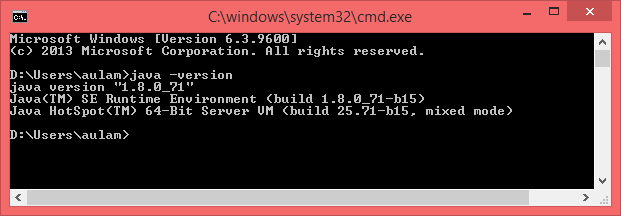
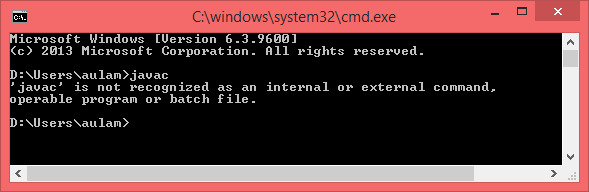
- Create "javacode" directory in D: drive, so you will have D:\javacode directory. We will use this directory to place our Java source code.
- Run text editor. In this example, we use Notepad. For those of you who know Integrated Development Environment (IDE) such as Eclipse or NetBeans, we have not used the IDE at this time, because by using Notepad we will understand the basic techniques of Java programming.
- Write the following code in it:
/* This is Java code. File of this code should be saved with the name HelloWorld.java. */ public class HelloWorld { //Execution of the program will be started by calling main(). public static void main(String[] args) { //Print Hello World to the console. System.out.println("Hello World"); } } - Save with the name HelloWorld.java

Now, let's see more about the program code above. Although it looks a little (only consists of a few lines of code), the above program has several key features that common and is applied to all Java programs. First, the above program begins with the following code:
/*
   This is Java code.
   File of this code should be saved with the name HelloWorld.java.
*/
The above code is a program comment. Program comment is part of a program that will not be translated during the compilation process. The presence of the program comment is only used to provide the required information and will not affect the course of the program. Programmers usually use comment to write down the information about the code: when created, when modified, whom the author, and the most common is to write a logical process (algorithm) of the code created. Java provides three ways to write program comment: using sign /*..*/, //, and /**..*/. Comment that preceded by /* and end in */ may consist of a few lines, while starting with // will only apply to a single line. In code above we can see comment that has only one line, that is:
//Execution of the program will be started by calling main().and
//Print Hello World to the console.
The third type of comment (started with /** and end with */) are used to create documentation of using javadoc program.
The next line is as follows:
public class HelloWorld {
Line of code above using the class keyword to define a new class and followed by the name of the class. In Java, all programs are classes. Opening curly brackets, {, is used to initiate a program block, while the closing curly brackets, }, used to end a program block. Program block can be any class, method, selection structure, repetition structure, and so on. In this time, we do not discuss about the presence of public keyword contained in the code line. We will review it later in the next chapter that talks about package and interface.
Next, the HelloWorld class contained the following line of code:
public static void main(String[] args) {
The above line would start main() method. The main() method is the primary method to be executed first time when the program starts. If you ever learn C or C++ language, main() method contained in Java will be the same as the function of main() contained in C or C ++.
The next line of the code above is as follows:
System.out.println("Hello World");
The code used to display the "Hello World" text to the console.
Lastly, the above code is closed with closing curly brackets sign, }. The sign is used as the final part of the HelloWorld class definition.
Compile and Run
To compile and run a program that we made, we need to use command line via Command Prompt. The steps are as follows:
- Open Command Prompt, and go to our Java code directory in D:\javacode.
- Perform compile a file using the command javac HelloWorld.java.
If the compilation process runs smoothly without any errors, then system will not display anything in the console, but in that directory system will create a new file with the name HelloWorld.class. This file is called a bytecode and this file is the end file of program that we created.


-
To run or execute the program, type command java HelloWorld. System will display "Hello World" text to the console, as shown as follows: